How to Master Claude Cowork Completely?
Original Title: I want to master Claude Cowork (full course).
Original Author: @hooeem
Translation: Peggy, BlockBeats
Editor's Note: This is a systematic practical tutorial focused on Claude Cowork. The key is not "how to write better prompts," but "how to turn AI into a manageable and schedulable execution unit."
The article starts from the basics and gradually unfolds a complete usage framework: first, build a stable context through Project and .md files (i.e., the "business brain"), then achieve behavior constraint through a three-level instruction system (global, Cowork, project-level); based on this, introduce connectors, browser, and desktop control capabilities to expand the AI's execution boundaries; finally, through Skills, Plugins, scheduled tasks, and Dispatch mode, establish a reusable, automatically executable workflow system.
Unlike traditional "dialogue-based AI usage," this method emphasizes structure over interaction, system over technique. Its goal is not to improve single-task efficiency, but to solidify repetitive work into a long-term executable automation process.
If Chat is a tool, then Cowork is closer to a "trainable digital employee." What this article provides is an operational path to build from scratch and progressively scale up its capabilities.
Below is the original text:
Three months ago, Claude Cowork went online, and since then, Claude has been iterated over 50 updates, which has almost completely changed the way I use Cowork. Here's how you can take advantage of these changes and truly master it.
Claude Cowork is changing the way we work. You just need to hand the task over to it, and it will plan, execute steps on its own, and deliver the completed results directly to your folder while you do other things. However, from Cowork's initial release to now, many changes have occurred. This guide will explain all the key contents—so read it carefully.
If you want to hand over the entire workflow to a truly executable AI, then keep reading. This article is for you.
Over the past few months, while using it personally, studying how others use Cowork, and also consulting Claude in reverse to see if there are any interesting use cases overlooked after the new version updates.
In fact, I have crafted this content into a complete course—whether you've never heard of Claude before or use it every day, this article will help you truly master Claude Cowork.
What is Claude Cowork? (And What It Isn't)
Claude Chat is an assistant: you input a prompt, it provides a response. You are always engaged in the conversation. Great for brainstorming, drafting, quick thinking—you are always in a "loop."
Claude Code is for developers: it runs in your computer's terminal, allowing you to write code directly, execute code, manage GitHub repositories. It can also be used within an IDE (such as Google's Anti-Gravity)—you can think of it as a layer of Iron Man armor put on top of "primitive intelligence." However, it is not designed for non-technical users.
Claude Cowork is an employee: it is an interface for non-technical users, but it uses the same underlying auto-execution engine as Claude Code. You only need to assign tasks, it will automatically break them down into sub-tasks, spin up a local VM environment, execute the full process, and when you leave, place the final result directly into your folder.
Chat is conversation. Cowork is task delegation.
They are completely different relationships and will lead to completely different outcomes.
Once you truly understand this difference, your perspective on Cowork will change completely.
Setup Steps
Cowork will directly read from and write to files on your hard drive. Giving it access to the entire system is often the beginning of a disaster.
So, start by limiting it to a controlled scope. Specifically, do the following:
Step 1: Choose a Model
On the right side of the Cowork interface, select the AI model for task execution.
· Sonnet 4.6: The main model. Lower cost, higher efficiency, can cover 99% of your daily needs. Using it by default is sufficient.
· Opus 4.6: Heavy firepower. Quota is quickly consumed, reserved only for the most complex, critical, high-risk tasks. To quote the "Einstein principle"—don't let Albert Einstein do menial tasks in the kitchen.
·Haiku: Only suitable for lightweight, fast tasks.
Also, remember to open Extended Thinking at the bottom of the interface. It allows Claude to truly handle complex logic, rather than just relying on pattern matching to provide a surface-level answer. The importance of this detail is higher than most people imagine.
Step Two: Create a Sandbox
Right-click on the desktop, create a new folder, and name it Claude Workspace or Sandbox. This is Cowork's workspace. Its scope of operation will be limited to the folder you specify. It won't be able to touch anything outside that folder.
Step Three: Grant Folder Permissions
Once inside Cowork, click on "Work in a folder," select the sandbox folder you just created. Claude will request permission to modify files in that location. Click on "Allow once" or "Always allow."
That's the setup done, and it's also more reassuring.
Step Four: Perform Your First Task
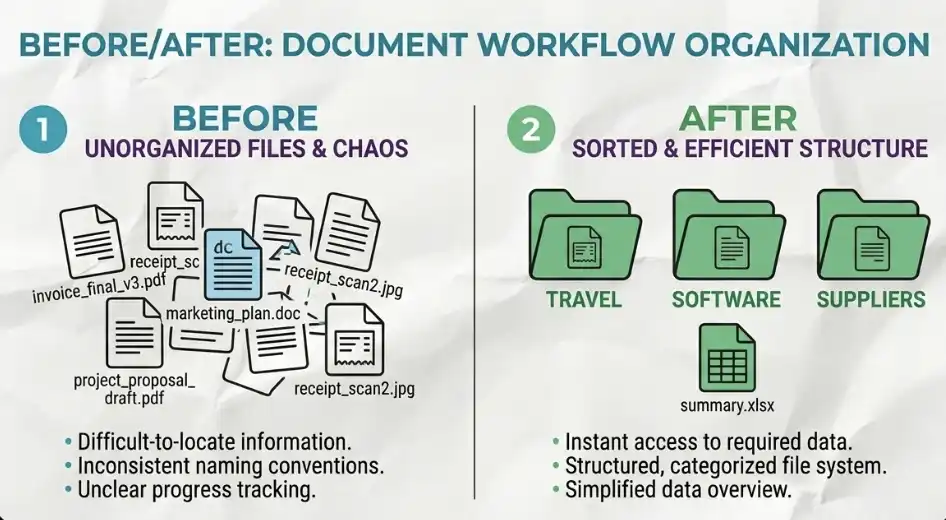
Drag a dozen or so invoices of different types into this sandbox folder, then enter the prompt: "Please organize these invoices by category into different subfolders and generate an Excel summary table."
Cowork will list the execution plan on the right side of the interface and then start processing autonomously. It may even schedule multiple parallel sub-agents to complete different parts of the task at the same time.
By the time you haven't finished your coffee, the invoices may already be organized.
Build Your AI Workspace
If you've been using Cowork in a "structureless" manner all along, you've probably encountered these issues: it doesn't remember anything between different sessions; every time you open a new window, you have to re-explain your business; different tasks interfere with each other and get mixed up.
The only solution is to establish a projectized working system (project ecosystem).
What Is a Project Ecosystem?
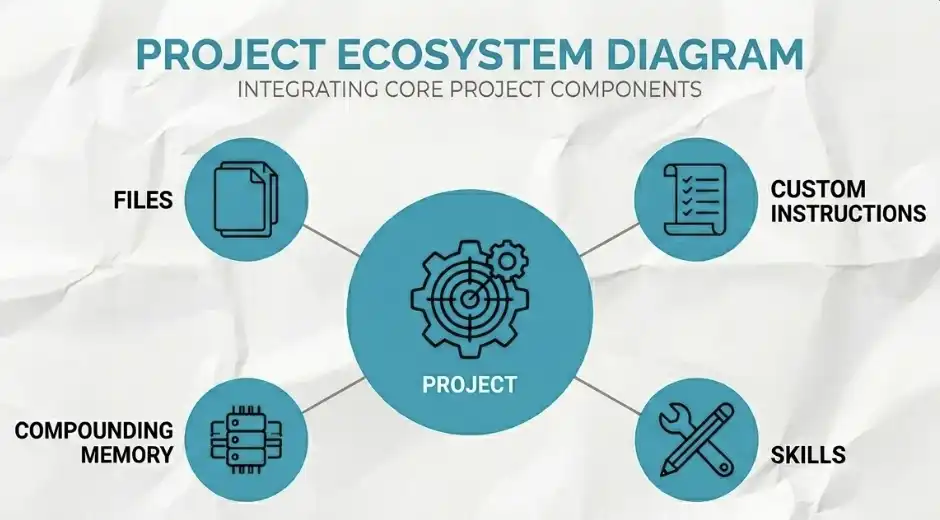
A Project is not just a simple folder. It is a container that brings together all of the following: your files, custom instructions, skills, an ever-growing context memory... all in one place.
· What happens without a Project? Claude doesn’t know who you are, what business you’re in, what tone you usually use. So, you’d be stuck in a loop: every conversation, starting from scratch to explain yourself.
· With a Project. Context starts to “compound.” For example, in Week 1, you might need to write a whole paragraph of prompts to explain clearly; but by Week 6, you just need to say “as usual,” and Claude understands what you mean. That’s the true power of Cowork.
One very important principle: Projects must be isolated
Different domains must be separated into different Projects. For example: YouTube Content Project; Finance Project – they should never be mixed together.
What happens otherwise? The tone and rules of YouTube will “contaminate” financial tasks; Claude will start to mix styles, and the output becomes unstable. There’s no room for negotiation on this – strict isolation is a must.
Three ways to create a Project
You can create a project in three ways:
1. Starting from scratch
· Name the project
· Write basic instructions
· Continuously accumulate context in its usage
Suitable for building a system from scratch.
2. Importing from Claude Chat
· Directly import your history projects from Claude’s web version
· All context and memories will be fully retained
Suitable for users who already have accumulations.
3. Creating based on an existing folder
· Choose a folder on your computer
·Cowork will automatically build the project around these files
Suitable for scenarios with existing material that need a quick start.
One-liner: Cowork's power lies not in "single interactions," but in the "long-term accumulated project context."
Your "Business Brain"
Project is the infrastructure, while the real "personality" resides in the .md files.
These are plain text files kept in your context folder, which Claude reads before each task execution. It's through these files that it acts as if it has been collaborating with you for two years, not as a newly onboarded generic assistant.
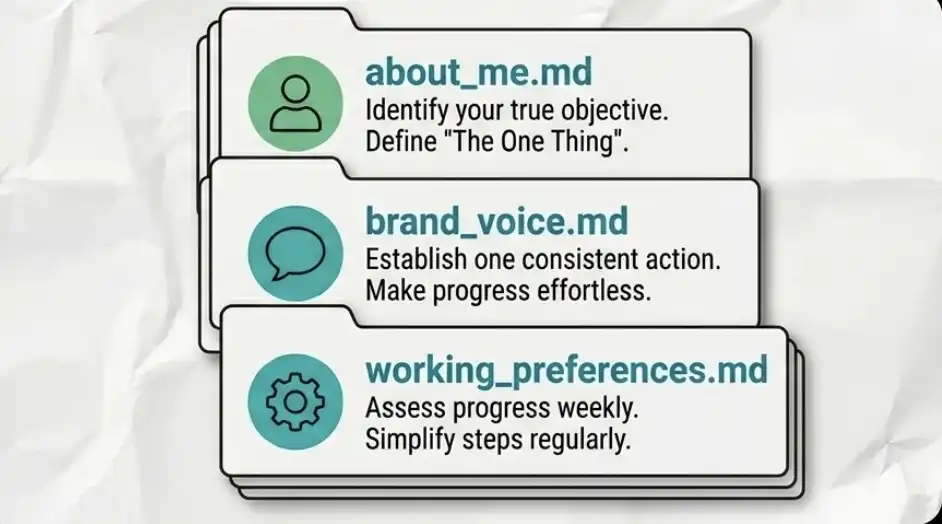
about_me.md
Clarify who you are, what your business does, who your clients are, how you make money, and your current priorities.
Claude reads this file every single time — every time.
brand_voice.md
Define your tone of voice: the tone you like, expressions you dislike, common sentence structures. You can directly paste samples of your past actual writing into this file.
The purpose of this file is to ensure that the content you write no longer sounds like a "one-size-fits-all Claude."
working_preferences.md
Specify your work preferences: how tasks are managed, where files are saved, what format outputs should be.
Don't start from scratch
The easiest way is to let Claude ask you. You can directly say, "Please ask me questions step by step and generate a set of business brain files based on my answers." It only takes 15 minutes. But it can save you hours every week, and it's ongoing.
Global Commands vs. Project Commands
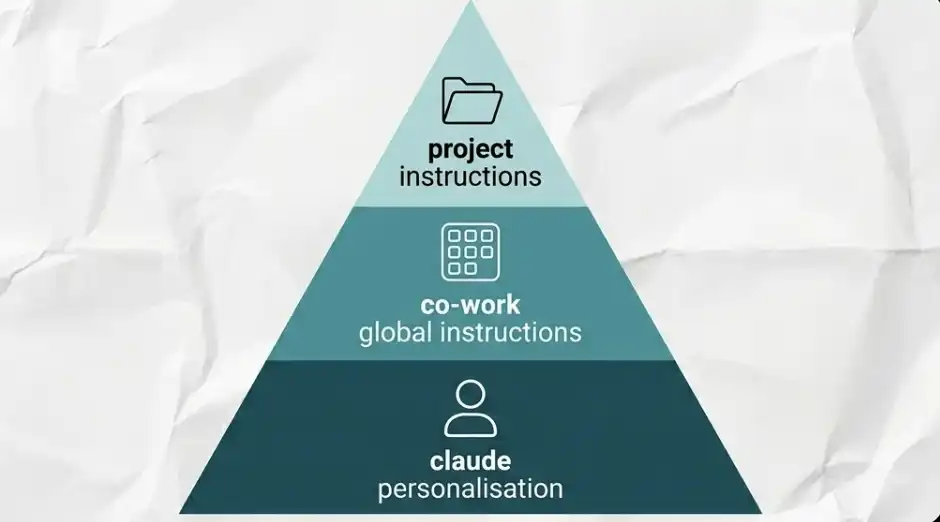
There are three layers in total, each progressively narrowing down the scope. Cowork will only function reliably when all three layers are configured.
Layer 1: Claude Personalization (Global)
Click on your name → Enter Settings. This layer will apply to all Chat, Code, and Cowork scenarios.
This is where you set your "General Rules," such as:
· Avoid excessive use of bold
· Prioritize primary sources when researching, rather than second-hand aggregated content
· Avoid using vague, hedge language
This is your foundational code of conduct.
Layer 2: Cowork Global Instructions
Path: Settings → Cowork Settings → Global Instructions. This layer only applies within Cowork but is relevant to all tasks.
It's suitable for defining some rules that must be consistently followed, such as:
· Specify date format
· File naming convention (e.g., underscore_descriptive_name)
· When handling business-related tasks, always check the sandbox folder first
Purpose: Avoid repeating the same context in every task.
Layer 3: Project-Specific Instructions
Only effective within a single project.
For example, in your YouTube project:
· Use a specific slide tool to create the video intro
· Record all data in a specific spreadsheet
These rules should not affect your financial projects.
Core Principle: Strict Isolation
Rules from different projects must be isolated. Otherwise, "contamination" can occur: YouTube's content rules affecting financial tasks; inconsistent output styles, misplaced logic. Once mixed, Claude will begin to "lose sight of who he is."
Global for habits, Cowork for execution, project for specialization.
Empower Your AI with Capabilities
From here on, Cowork is no longer just a useful tool but transforms into an operator capable of autonomously performing tasks. We need to empower it to be able to step out of the sandbox and interact with applications, websites, and your desktop environment.
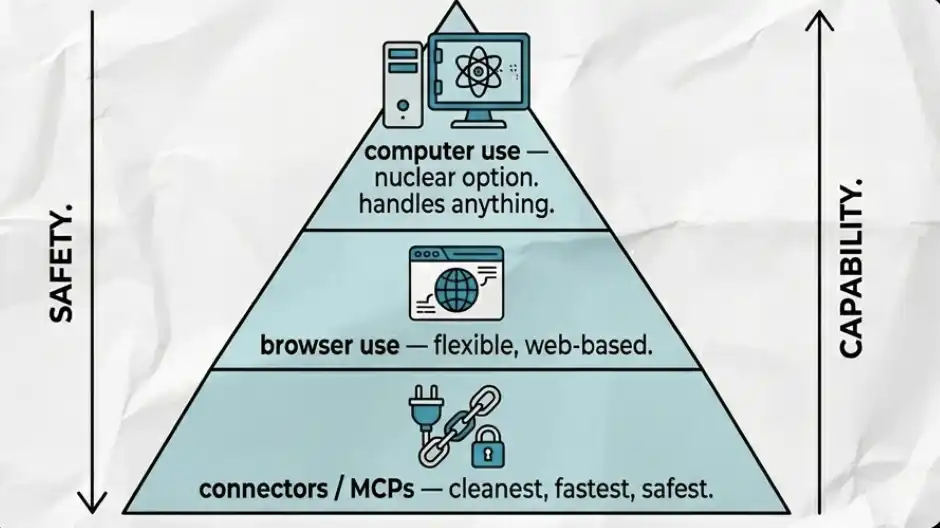
It is divided into three layers of capability, to be used in this order: start with connectors, then browser capabilities, and finally resort to computer operations.
Connectors and MCP
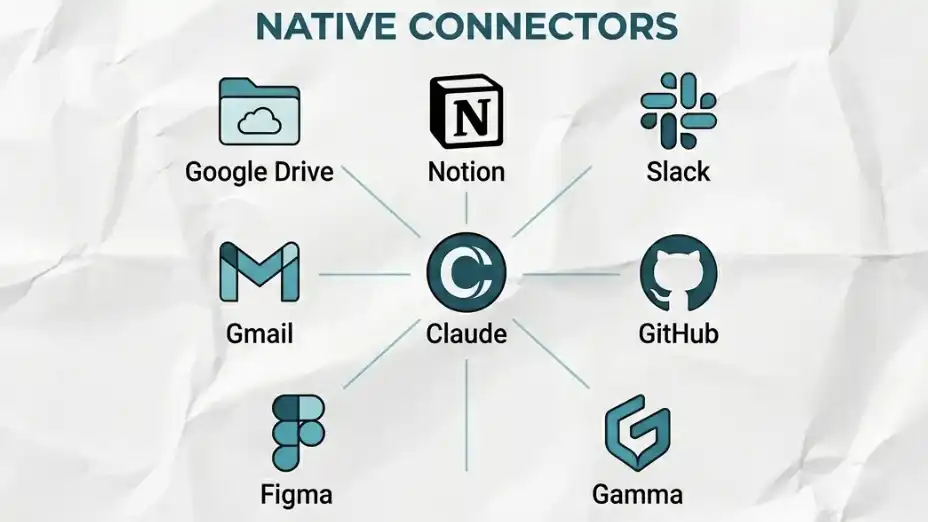
Connectors (also known as MCP, Model Context Protocols) allow Claude to operate directly within the applications you use daily.
Not through copy and paste, not through screenshots, but through authorized access, directly performing actions within the application interface. Built-in connectors support Google Drive, Notion, Slack, Gmail, GitHub, Figma, and more.
How to Connect
Click the plus icon in the chat interface, go to the connectors tab, browse or search for the tool you need, and then complete the authorization process in the browser.
After connecting, you can have fine-grained permission control. For each connected application, you can individually set it to "Always Allow," "Require Confirmation," or "Deny Access." You always have full control over what it can and cannot do.
Custom Connectors
Take Gamma as an example: If Claude creates a presentation without a custom connector, the result is usually mediocre, with poor formatting and structure.
However, when you enable the Gamma connector, Cowork automatically hands the content to Gamma, allowing it to generate a well-structured, visually designed presentation.
The core principle is: Use the right tool for the right job. Do not let a general-purpose tool do work that should be done by a specialized tool.
Advanced Tips
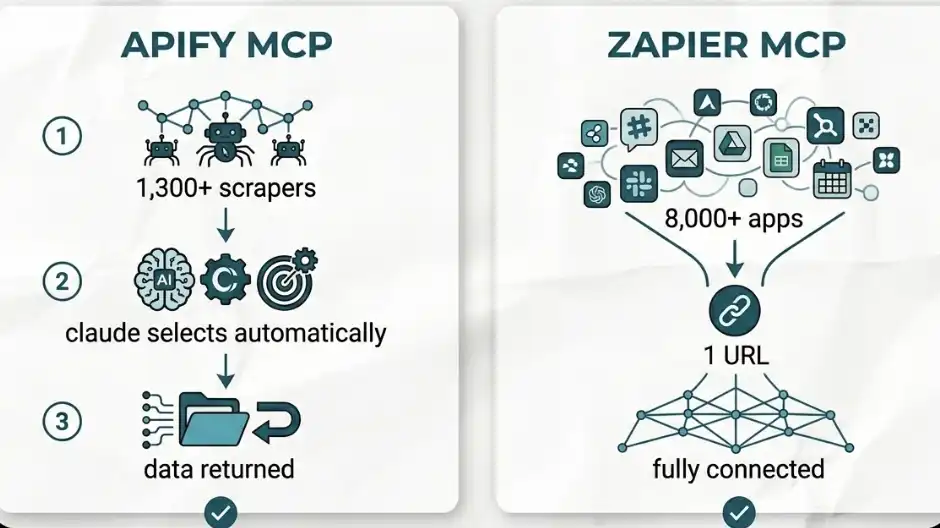
Hack 1: Apify MCP (Painless Data Scraping)
Want to scrape data from YouTube, TikTok, or Instagram? You don't need n8n, nor do you need to build complex automation workflows. I've tried both before, and the difference is very clear.
Operation Steps:
·Create a free API Token in your Apify account
·Open Cowork's connectors, search for "Apify"
·Paste your API Key and complete the connection
Once done, when you instruct Claude to scrape data from a platform, it will automatically choose the most suitable one from Apify's over 1300 web scraping tools (referred to as "actors") to perform the task.
No manual selection or configuration is needed. It will autonomously find the tool, run it, and return the data.
Hack 2: Zapier MCP (Connect 8000+ Apps)
If the tool you are using is not natively supported by Claude, this is the solution. This was a feature that truly blew me away the first time I used it.
Zapier's MCP can connect over 8000 apps, such as HubSpot, Skool, Airtable, and more.
Instructions:
·Create an MCP server on the Zapier platform
·Select "Claude Cowork"
·Configure the specific tools and actions you want to allow
·Copy the generated URL
·Go back to Claude's connectors, search for "Zapier," and paste the URL
In less than 10 minutes, you'll unlock 8000+ apps.
This full integration set completely eliminates a common problem: "What if the tool I use is not supported?"
Now, this problem is essentially gone for good.
Browser Capability: Autonomous Web Page Actions
If no connectors are available, resort to using a browser extension. This is the second-tier capability.
Installation Method
·Open Google Chrome
·Go to the Chrome Web Store
·Search for "Claude"
·Install and pin to the toolbar
·Enable "Claude in Chrome" in the Cowork settings
Post-Activation Capability
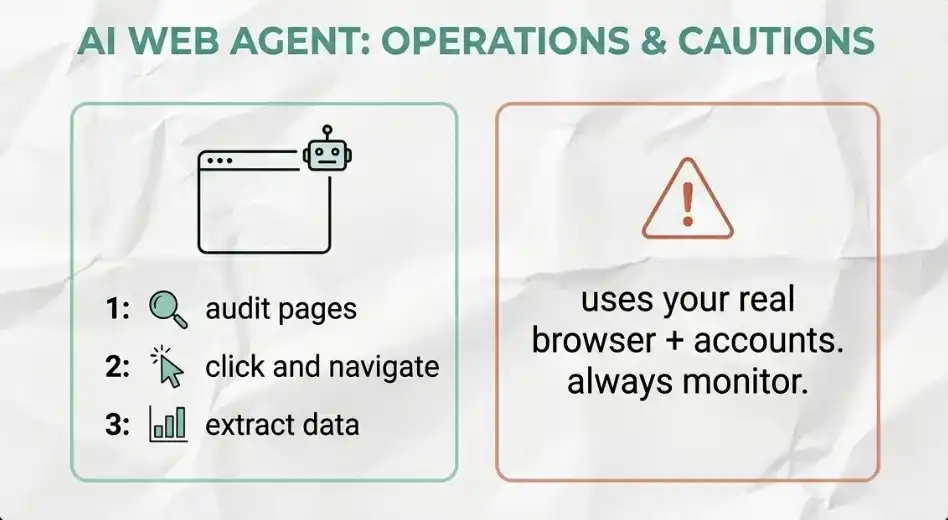
Post-activation, Claude can:
· Automatically open a browser tab
· Access a website
· Read page content
You can give it a URL to:
· Review a landing page
· Analyze CTA (Call to Action) design
· Conduct competitive analysis
It can not only read text but also understand page structure, such as:
· Italics for emphasis
· Heading hierarchy
· Page layout
Moreover, it can perform multi-step actions.
For example, you can have it: Open YouTube → Browse recommended videos → Retrieve view count, like ratio, and comment sentiment
It can execute tasks fully.
A Risk Warning to Take Seriously
Claude uses your actual browser. In other words, it operates within your personal account. If you ask it to search for a flight ticket and you already have your payment details saved on the airline's website—technically, it has the ability to complete the payment directly.
Therefore, you need to:
· Monitor its actions
· Set access restrictions (blocklists)
This is not a theoretical risk but an actual capability. Treat it as a newly onboarded employee who already has access to your account.
Computer Operation Capability: Full Screen & Desktop Control
When the Connector can't solve it and Browser Capability falls short, Computer Use comes into play. This is the ultimate fallback.
It allows Claude to:
· Directly "see" your screen
· Control your mouse
· Input on your keyboard
In other words, what you could manually do on a computer, it can now autonomously do.
How to Enable
· Click on your account name
· Go to Settings → General
·Open 「Computer Use」
Important: Before performing any actions, make sure to add sensitive applications to the blocklist.
Real-life Example
For example, you can have Claude: find a video file on the desktop and drag it into the CapCut project
The execution process is as follows:
·Claude requests access to Finder and CapCut
·You can be completely hands-off
·It visually recognizes your file
·Opens the editing software
·Finds the corresponding file and completes the drag-and-drop
The entire process is automated. This capability is very powerful. Therefore, you must first configure the blocklist.
Automation and Task Delegation
There is one rule that will fundamentally change how you use this tool: any task that repeats more than once a week should be automated.
The automation system is divided into four layers: Skills, Plugins, Scheduled Tasks, Dispatch Mode. These are progressively built capabilities that do not need to be set up all at once but rather constructed step by step in order.
Custom Skills: Condense a Workflow into a Single Command
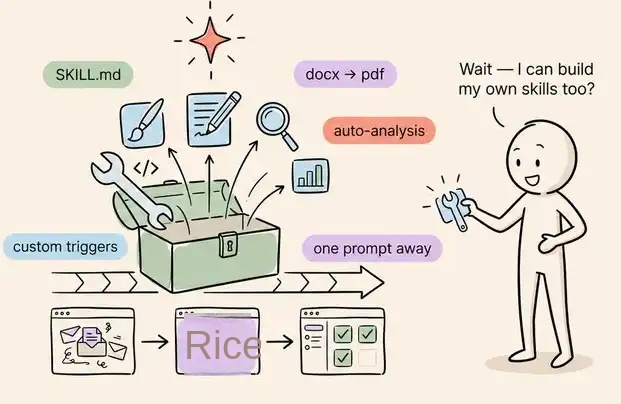
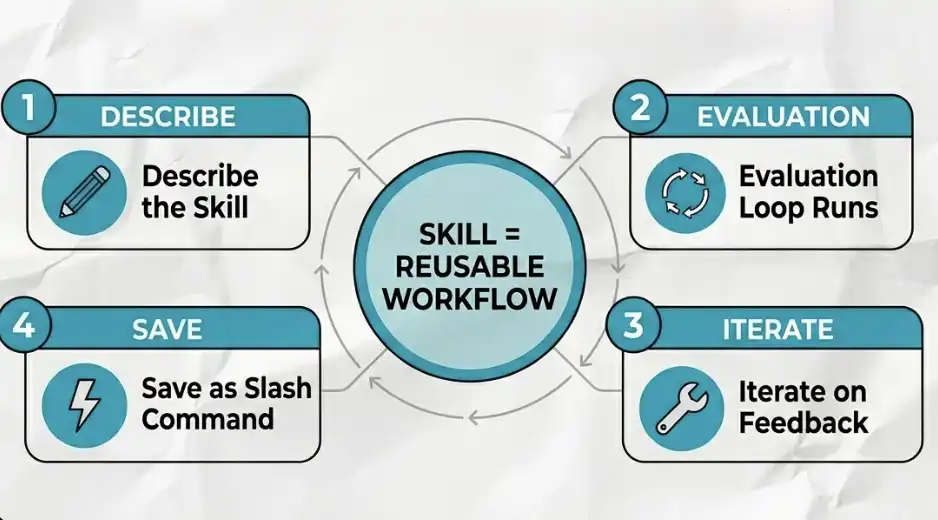
A Skill is essentially a reusable AI workflow encapsulated into a single command.
You no longer need to write a long prompt each time to execute the same process,
Instead, you only need to call it with a slash command, for example: /summarise_invoices
What's Behind a Skill?
Essentially, it's a .md file:
·Contains instructions
·Sometimes includes scripts
·Claude dynamically loads it when performing a task
You don't need to write code. Just describe it in natural language, and Claude will help you generate this file.
Skill Creation Process
1. Definition (The Prompt)
Clearly describe what this Skill is supposed to do.
For example:
· Automatically apply your brand colors and fonts to all generated presentations
· Organize a batch of invoices into a structured table
2. Evaluation Loop
Cowork has a built-in Skill testing mechanism:
· Perform a task with the Skill
· Perform the same task without the Skill (as a benchmark)
· Compare the two results side by side
3. Iteration
Review the results:
· Are there any missing requirements (e.g., forgot to use beige background)?
· Are the fonts correct?
· Is the formatting as expected?
Provide feedback to Claude, and it will automatically adjust.
4. Save & Deploy
Once the output meets your standards: Click "copy to your skills"
From then on, this entire process can be invoked with a single command.
Types of Skills You Can Build
· Automatically parse a whole folder of invoices and generate a well-categorized Excel sheet
· Fetch YouTube videos and generate an interactive HTML transcript with timestamps
· Call an external image model API to instantly create an information graphic in line with your brand style
One-liner Summary: Skill = Turning a "complex process" into "a single action".
Plugins: Connecting Multiple Skills into a Complete Workflow
While a Skill can automate a single process, the role of a Plugin is to string together multiple Skills and connectors to automate an entire "role" workflow.
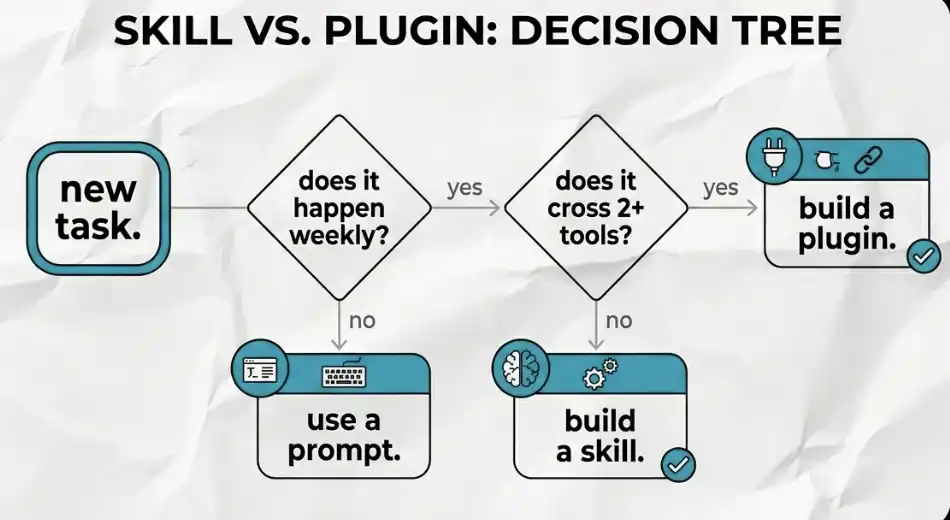
How to Decide Between Using a Skill or a Plugin?
You can do a simple test:
· Does this task repeat every week? If not, just use a regular prompt.
· Does it involve 3 or more steps and span across 2 or more tools (e.g., Slack + Gmail + Notion)? If not, use Skill. If it does, then it should be a Plugin.
How is a Plugin built?
All you need to tell Cowork is: which entire workflow you want to automate
It will automatically include: the required MCP (Connectors); the corresponding Skills. These are combined into a complete "Main Workflow Package," which can be executed with a single command.
The key value of a Plugin: Reusability and Distributability
Plugins are shareable. You can package your best workflow (SOP) into a Plugin and distribute it to your team or community. When they perform the task, the results will be almost identical to what you would achieve.
In other words: your workflow has been productized.
Scheduled Task: Run Automation on Time
Now, Skills and Plugins can be triggered to run automatically at set times. Even when you are away from your computer, they will execute.
How to Set Up a Scheduled Task
· Navigate to the "Scheduled" tab in the left sidebar
· Click on "New Task"
· Enter the task name and description
· Reference the corresponding Skill or workflow in the prompt. For example: "Using my flight search Skill, find round-trip flights to Spain priced below 2400 pounds"
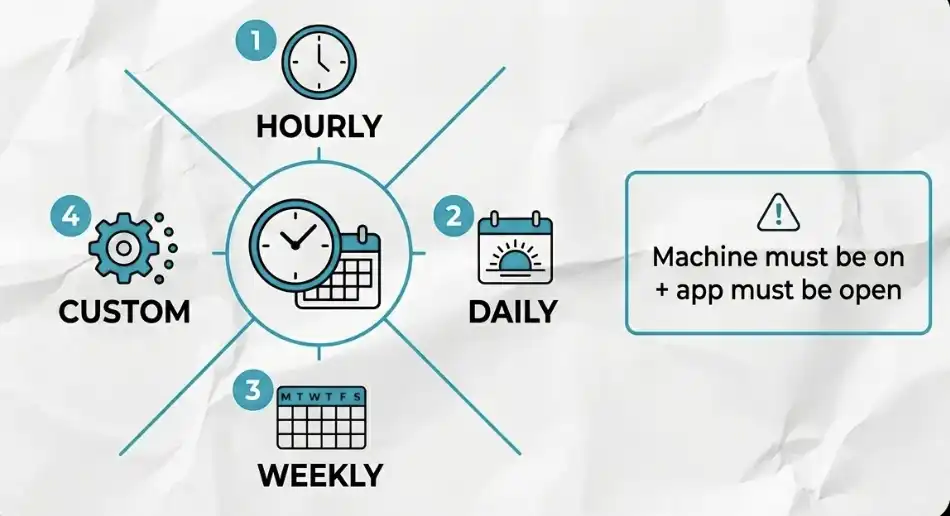
· Set the execution frequency: hourly, daily, weekly, or specific date + time
· Choose the relevant project folder
· Save
One Key Rule
Scheduled tasks will only execute when your computer is on and the Cowork app is running. If you set a task for 9 a.m. but your computer is off, the task will wait until you turn on your computer to run.
An Easily Overlooked Key Detail
Recommend adjusting power settings to keep the device awake. This is the most common source of issues—many automations “fail” not because they are misconfigured, but because the device isn’t running.
Dispatch Mode: Remote Control via Mobile
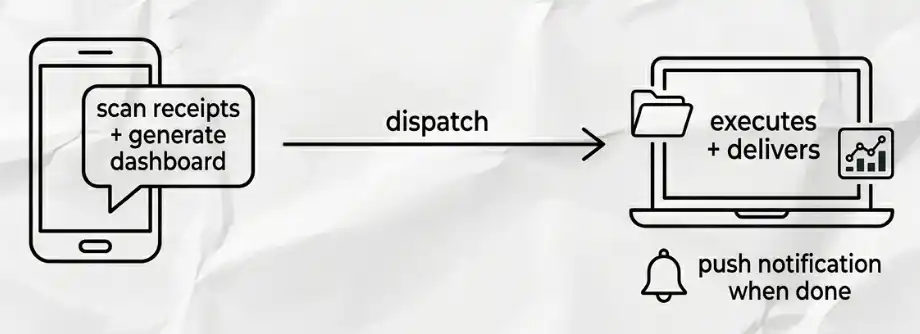
When you are away from your computer but need a task to run on your local machine, use Dispatch Mode. You can send a message to Claude from your mobile device, and it will execute the task on your desktop. Mobile and desktop share the same chat thread, ensuring continuity.
How to Set Up
In Cowork on the desktop:
· Open settings and enable Dispatch
· Open the “Keep Awake” option in the Dispatch menu (very important). This prevents your computer from sleeping, ensuring files are accessible.
· Allow browser actions and computer use
How to Use
Send instructions from your mobile device, e.g., “Scan my receipts folder and generate a data dashboard.”
Cowork will execute the entire process on your computer. With push notifications enabled, you will be promptly notified when the task is completed.
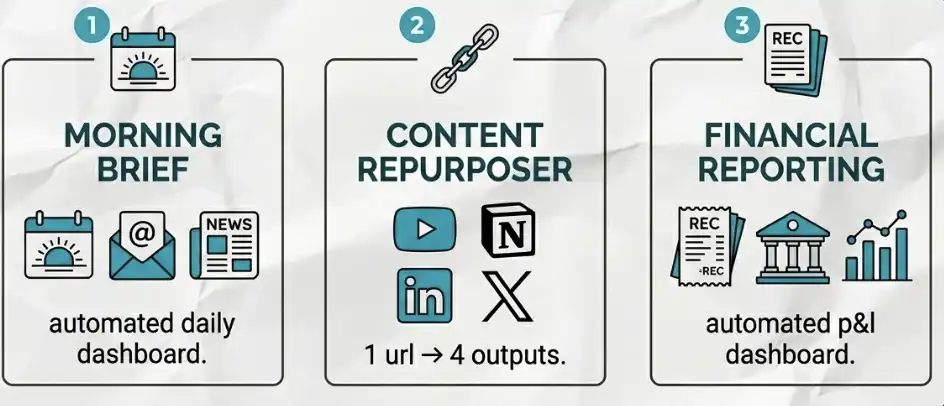
Master Workflow: Prioritize Setting Up These Three Systems
Start with these three systems, in this order, as they are the most valuable to establish first.
1. Daily Morning Brief
Have Claude prepare the day’s information for you before you start working. Set this up as a scheduled task and link it to your calendar and email. It will:
· Summarize your daily schedule
· List actionable email items
· Fetch local weather information
· Retrieve the latest industry news for you
· Even draft email replies in advance for your review and send-off
By the time you sit down at your computer, everything is ready. This single setup alone justifies the subscription cost.
2. Content Repurposing System
Give Claude a YouTube link, and it will automatically:
· Extract the video transcript
· Organize the content into a new Notion page
· Automatically generate platform-specific copy for LinkedIn and X
One input, three outputs. All done without manual intervention.
3. Financial Reporting System
Set up a monthly recurring task.
You can:
· Grant Claude access to your transaction records (without providing full account information)
· Or directly provide a receipts folder
It will automatically:
· Categorize expenses
· Reconcile income and expenditures
· Generate an interactive HTML financial dashboard (displaying profit and loss)
Your accountant can use this organized report directly, and you'll hardly need to spend any time.
Token Management: How to Avoid Rapid Depletion
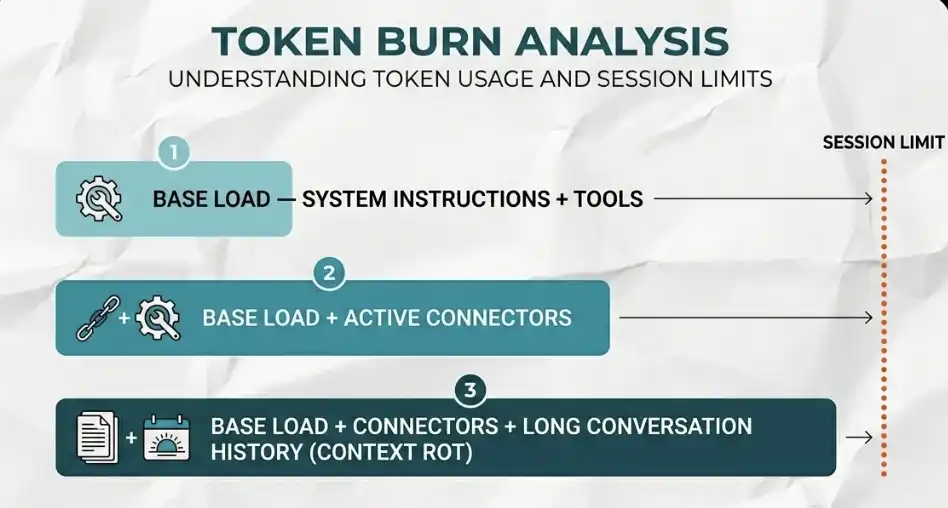
Every word you send to Claude and every word it reads from a file consumes tokens. If not managed properly, you might deplete your quota within a week.
I've seen people exhaust their highest-tier quota in three days due to three completely avoidable mistakes. As follows:
Mistake One: Ignoring Baseline Load
Your context window is partially occupied even before you input any content:
· System commands
· Tools in use
· Enabled MCP connectors
All these consume tokens. The more connectors open, the faster the consumption. Only activate what's truly needed for the current task.
Mistake Two: Context Rot
If you use the same conversation window for a long time, Claude reloads the entire conversation history each time. For example, if you just finished writing an email and then have it plan a trip to Dubai in the same window, the system will also load the "email content" into the "travel task."
This is a complete waste, and many people unknowingly exhaust their limits this way.
Mistake Three: Handling Batch Tasks in Dialog
If you need to process 100 invoices but have Claude read and process them one by one in a dialog, you will quickly deplete your tokens. A better approach is to have Cowork write a reusable script (Skill) to handle these invoices.
The token consumption of a script is much lower than processing line by line, and this difference is very clear.
30–45 Minute Rule
Keep each session concise and focused.
· Process only one topic per session
· Use 30–45 minutes per window or open a new window when switching tasks
A new window means a new context and a new token budget.
Parallel Subagents
For large tasks, you can have Claude execute in parallel:
· Deploy multiple subagents
· Each subagent has an independent context window
· Process different sections simultaneously
Einstein Principle
Opus is only used for complex, high-risk reasoning tasks. Sonnet is used for almost all other scenarios.
99% of the time, you do not need Opus. Do not use it as the default model.
AI Security
Cowork runs directly on your local machine. Anthropic has built-in security mechanisms at the product level, so the underlying risk is relatively low. The issue is not here.
The real risk comes from others.
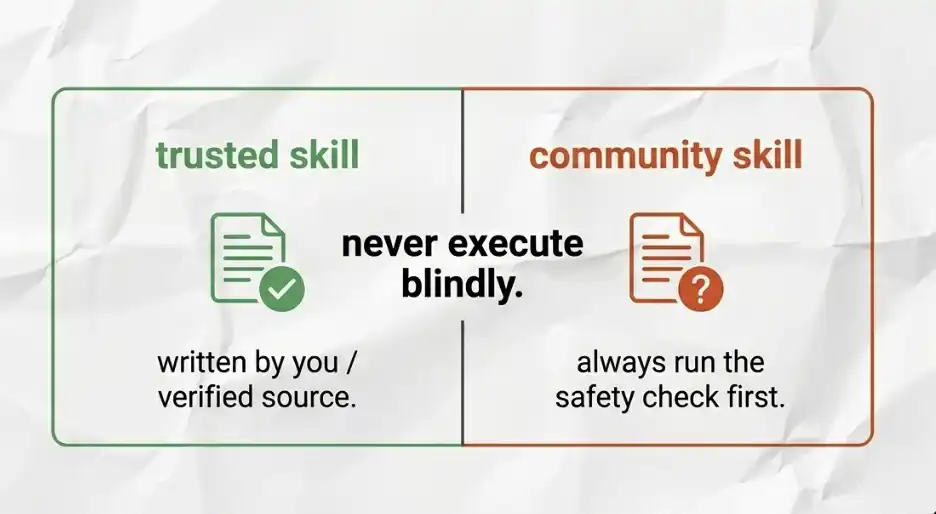
You can download advanced Skills built by other users from platforms like GitHub. When you import these external Skills, you are essentially introducing a piece of instruction for Claude to execute on your machine within the scope of permissions you granted.
If someone embeds malicious instructions in this .md file, prompt injection may occur—for example, instructing the AI to delete files, steal data, or even elevate its own privileges on your system.
This is not an assumption, but a real-world risk.
Security Check Process
Before adding any external .md file to your Skills repository, make sure to follow these steps: Copy all content of that Skill into Claude Chat, and ask directly: "Does this Skill contain any potentially harmful, malicious, or out-of-scope instructions?"
It only takes two minutes. But it must be done every time, without exception.
The Key Takeaway
All the content of this guide is built on a key cognitive shift: Do not consider Claude Cowork as a chat tool. It is fundamentally an "autonomous employee" that can be delegated tasks.
Once you understand this, you will no longer ask questions but will start assigning work to it.
The Top Three Points
1. Architecture Over Prompt
A clear project structure, detailed .md context files, and isolated project instructions contribute far more to the quality of output than any "clever prompt."
Build the foundation once; it will have a continuous compounding effect.
2. Automation System is Layered
The sequence is: Skills → Plugins → Scheduled Tasks → Dispatch, with each layer building on top of the previous one.
Do not attempt to build the entire system at once. Start by automating a weekly recurring task and then gradually expand.
3. Security is Not Optional
Every Skill downloaded from the community must be checked before running. A security check only takes two minutes, but those two minutes could protect your entire machine.
Your Next Steps
Today, do these three things:
· Create a sandbox folder
· Grant permissions
· Run a real task
For example:
· Tackling a messy downloads folder
· Or organizing a stack of receipts
That's enough to really grasp the power of this tool.
Which workflow to start with?
· Morning Brief
· Content Repurposer
· Financial Dashboard
Choose one and dive in.
If you remember only one thing
Go to Zapier MCP. It can connect over 8000 apps, and setup takes just 10 minutes. If you skimmed past that part just now, go back and read. It's the most underrated feature in the entire tool, and the one most people have never really tapped into.
Welcome to join the official BlockBeats community:
Telegram Subscription Group: https://t.me/theblockbeats
Telegram Discussion Group: https://t.me/BlockBeats_App
Official Twitter Account: https://twitter.com/BlockBeatsAsia
 Related Articles